Resource manager
Important
Enterprise Edition only
The Knowage Community Edition only allows the management of the models folder, in order to define metadata for data mining analysis. The Knowage Enterprise Edition allows the management of all the Knowage installation resources.
The Resource Manager functionality available under the TOOLS section of the Knowage main menu, allows the management of all files within the Resources folder of the Knowage installation.
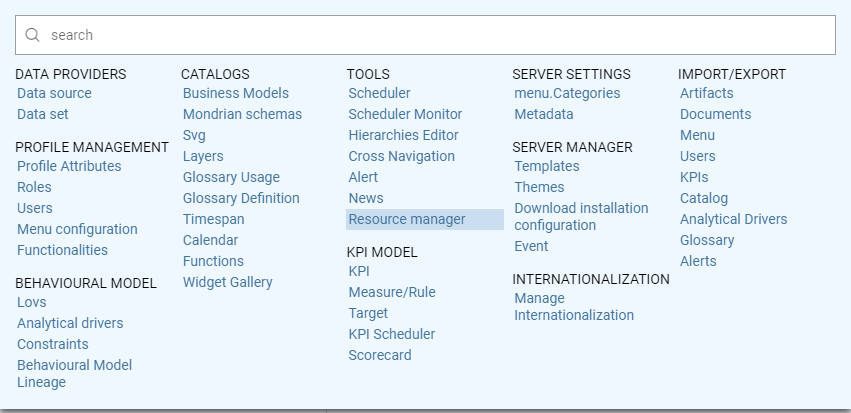
Resource Manager from menu.
By default, the system shows the files starting from the root directory:
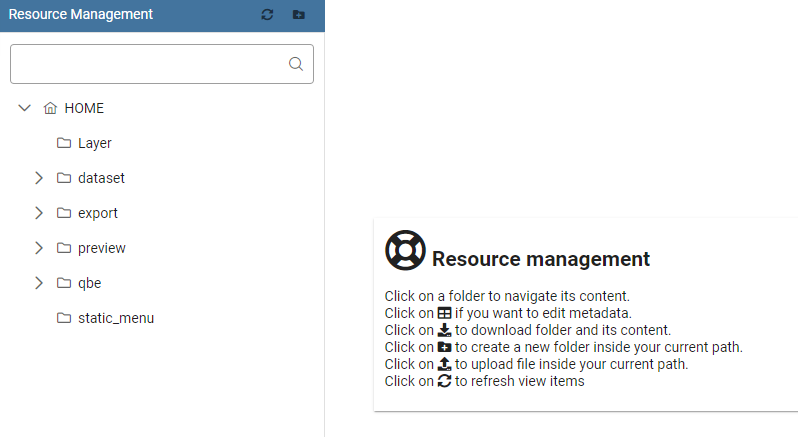
Resource Manager starting view.
Resource Manager functionalities
The Resource Manager window diplays two sections: on the left the tree structure representing the existing resource system; on the right the details of the selected folder.
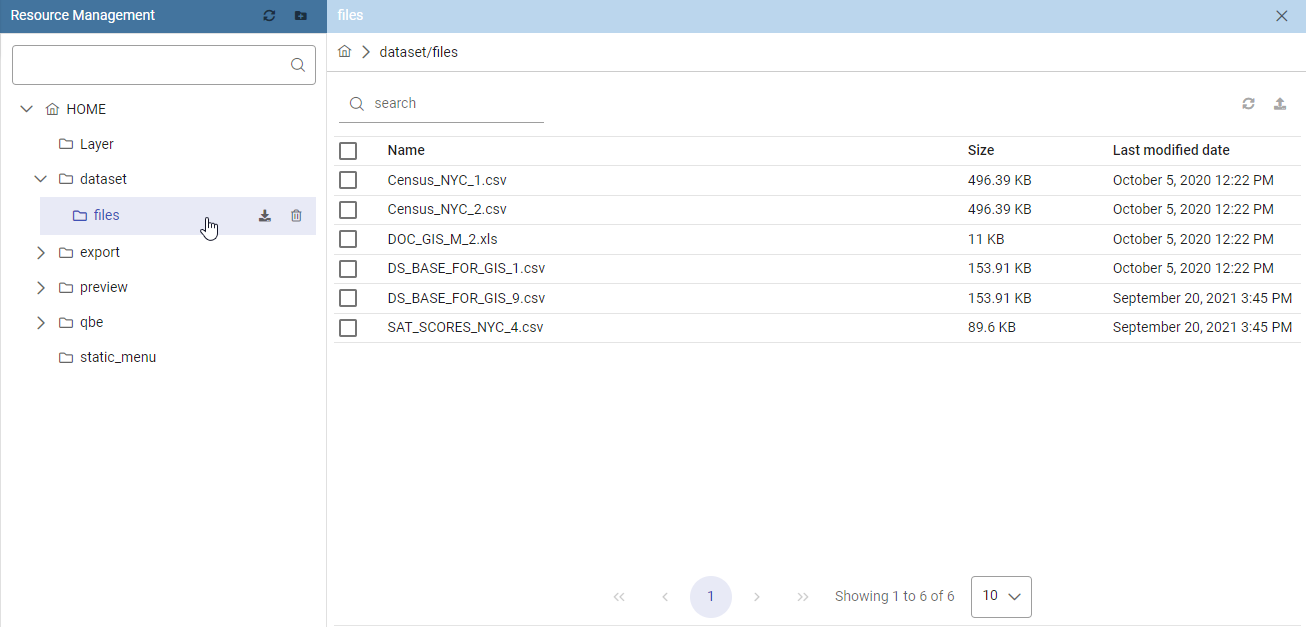
Resource Manager detail view.
Tree functionalities
The tree shows exactly the phisical structure of the file system from the resources folder. On the top bar are present two funcionalities: Refresh tree and Create new folder:
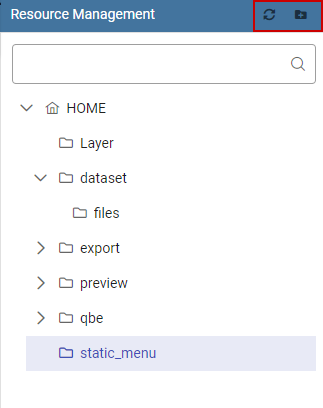
Tree view.
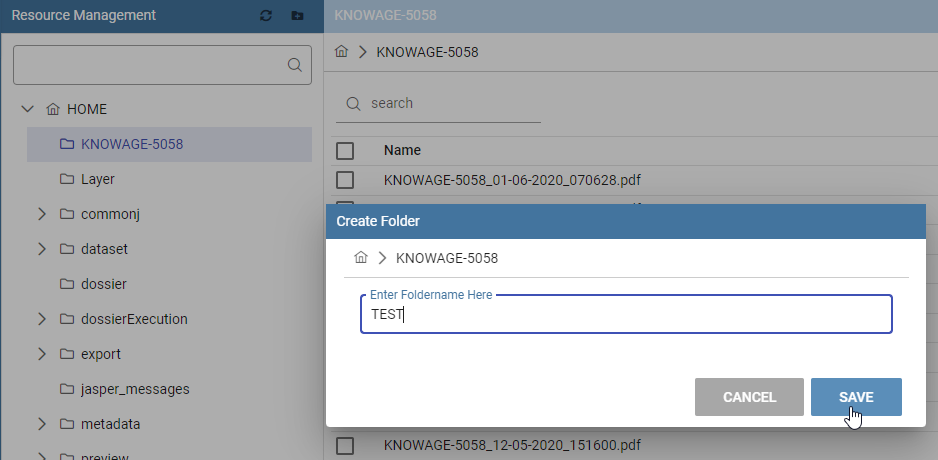
Creation detail.
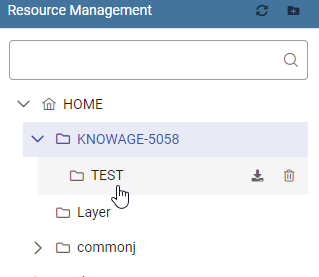
Creation result.
The new folder will be created under the selected folder of the tree ( in this case, ‘KNOWAGE-5058’).
By clicking on the Download icon of a specific folder, you can download all files contained:
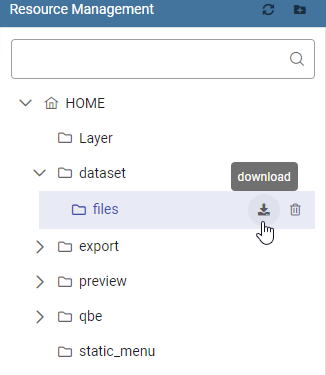
Download functionality icon.
Select a folder for the download and give a name to the zip file to be available in your local system.
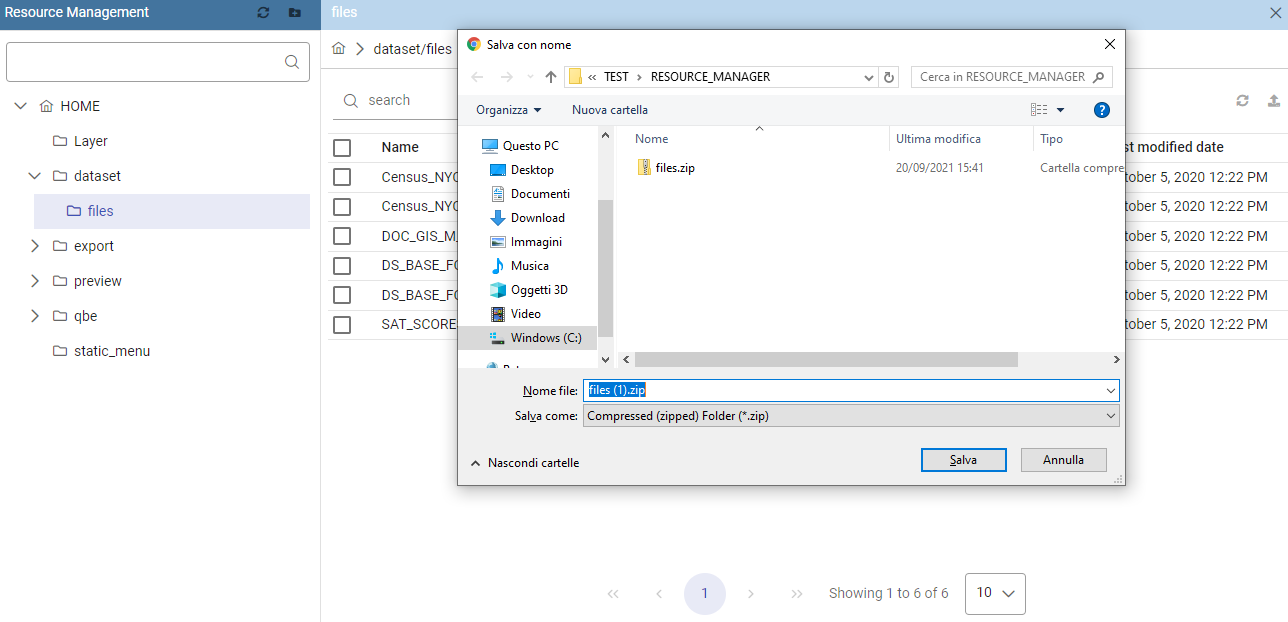
Download functionality.
By clicking on the Delete icon of a specific folder, the folder can be fisically removed from the Knowage server after confirming the operation. Please remember that the deletion of a folder is an irrecoverable operation.
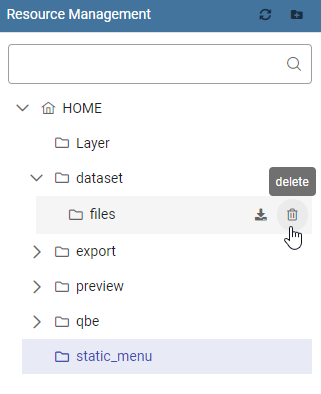
Delete functionality icon.
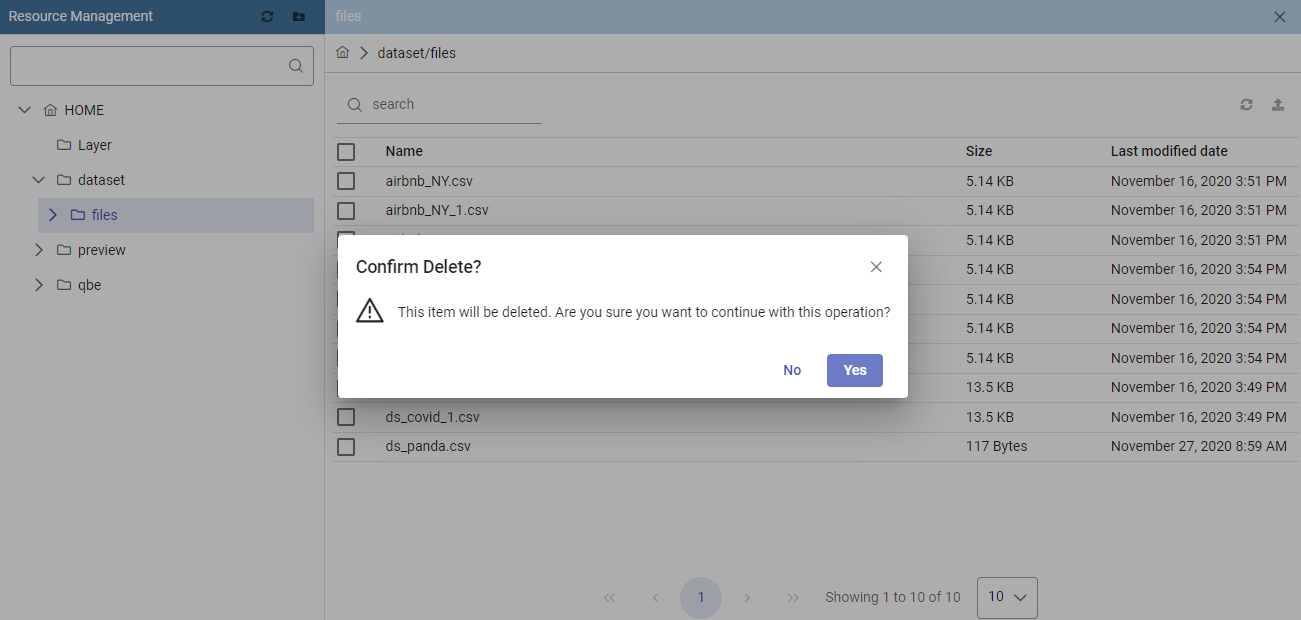
Delete functionality confirmation.
Detail panel
When a folder is selected, the right panel shows the properties Name, Size and Last Modified Date of all contained files.
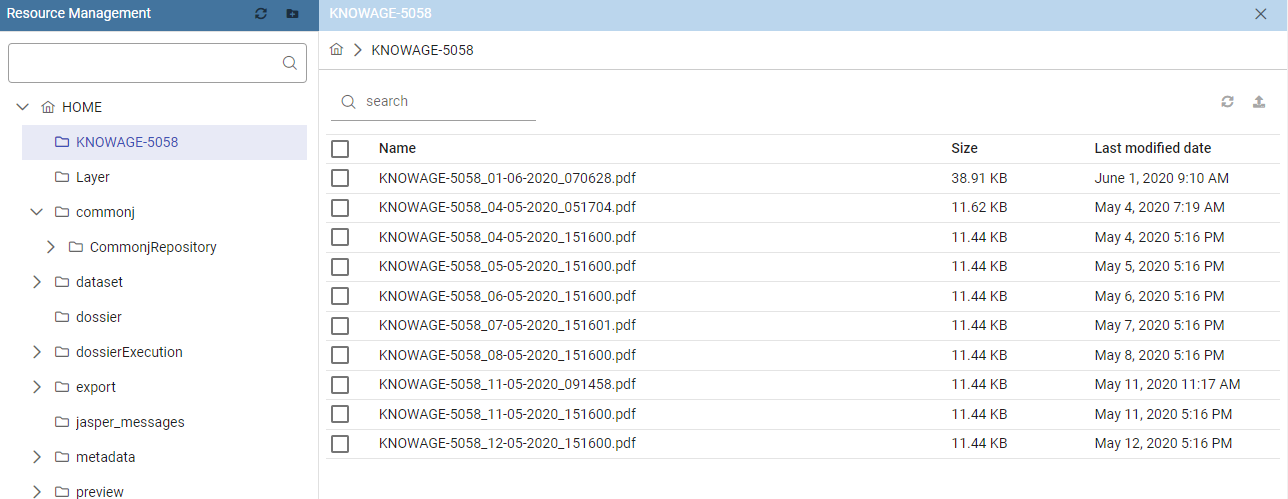
Detail view.
All items are selectable for downloading or removal trough specific icons of the toolbar.
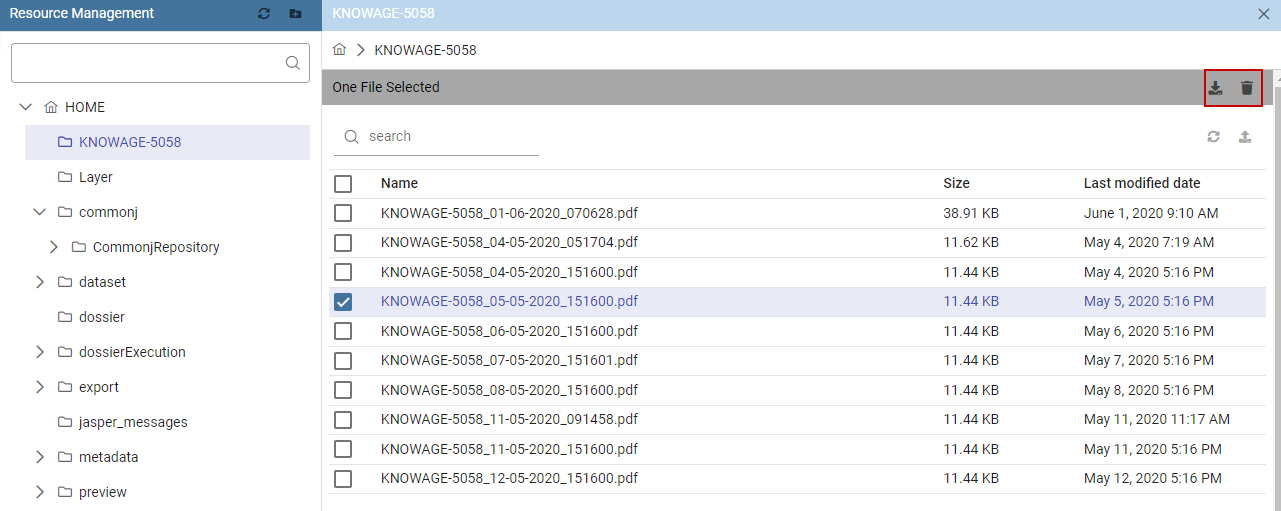
Functionalities available for selected files
An Upload functionality is also available through a dedicated icon. See image below.
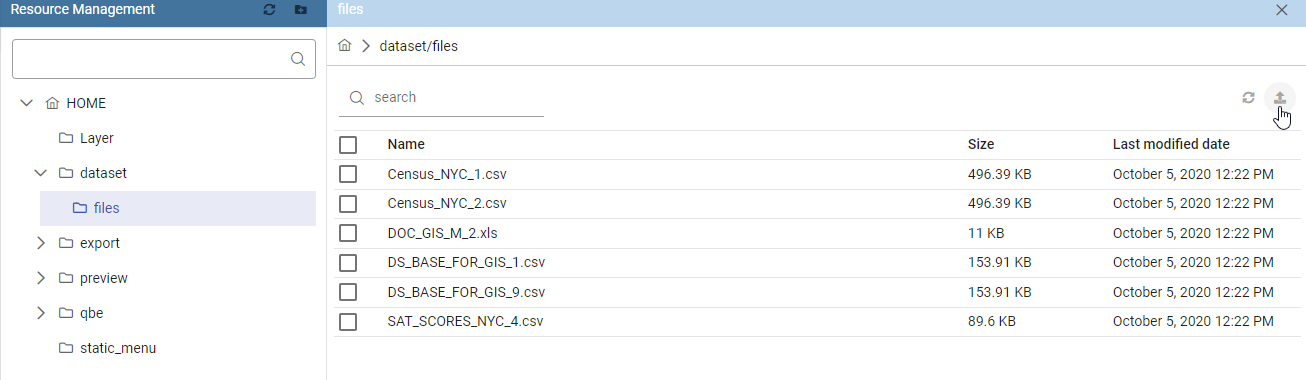
Upload files
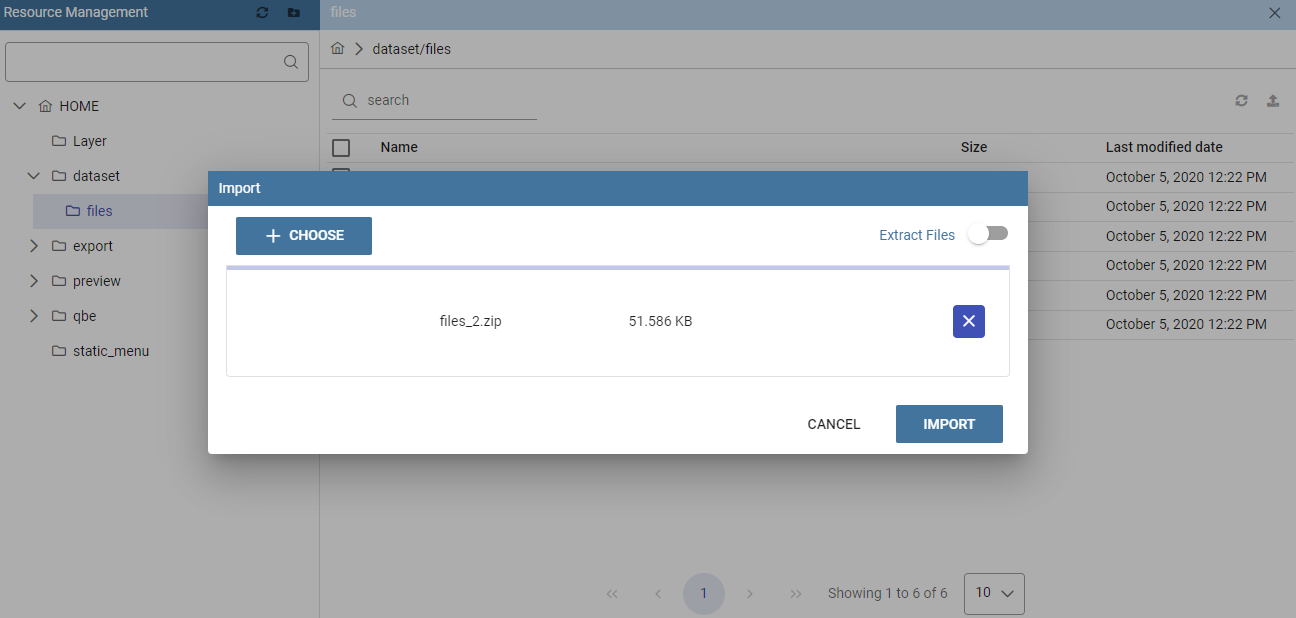
Selection file popup
In case of a zipped file want to be uploaded, it is possible to keep the file zipped.
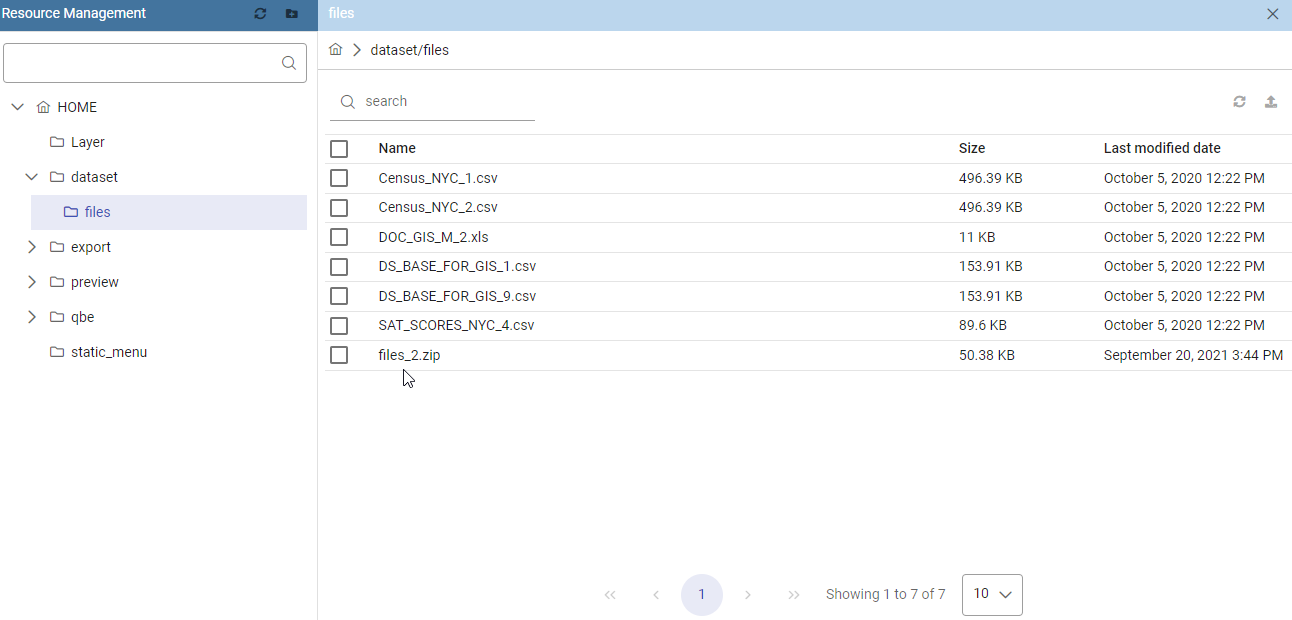
Uploaded zipped file
It is also possible to unzip the file to upload by enabling the Extract Files option. See figure below.
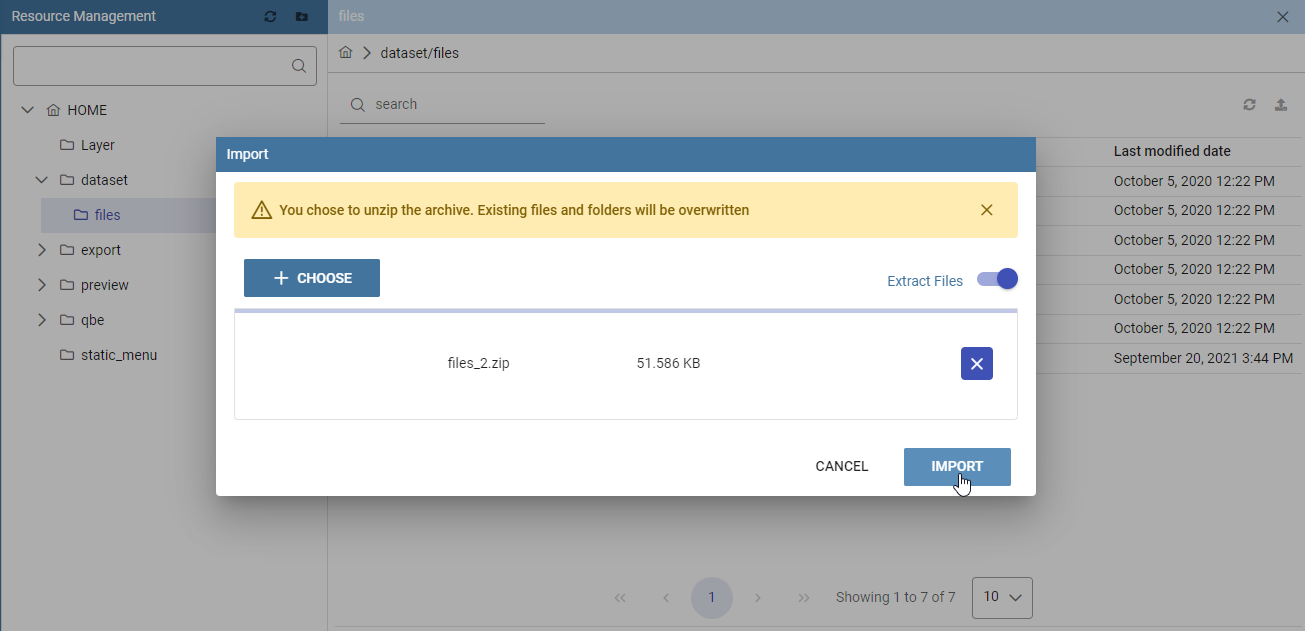
Uploading an unzipped file
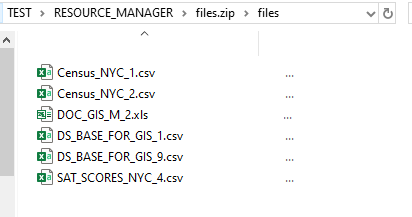
Results of uploading an unzipped file
Model Metadata Definition
As already told at the beginning, models is the unique folder managed by both the Community and the Enterprise Edition. It contains all the data-mining models usable by the Knowage Function Catalog.
For each model it is possible to define its metadata, download and/or delete the model using directly the tree options:
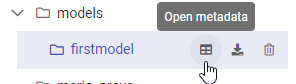
Models folder options
Metadata management
The Metadata option opens a GUI where the user can define the metadata information for the model, into the specific see image below:
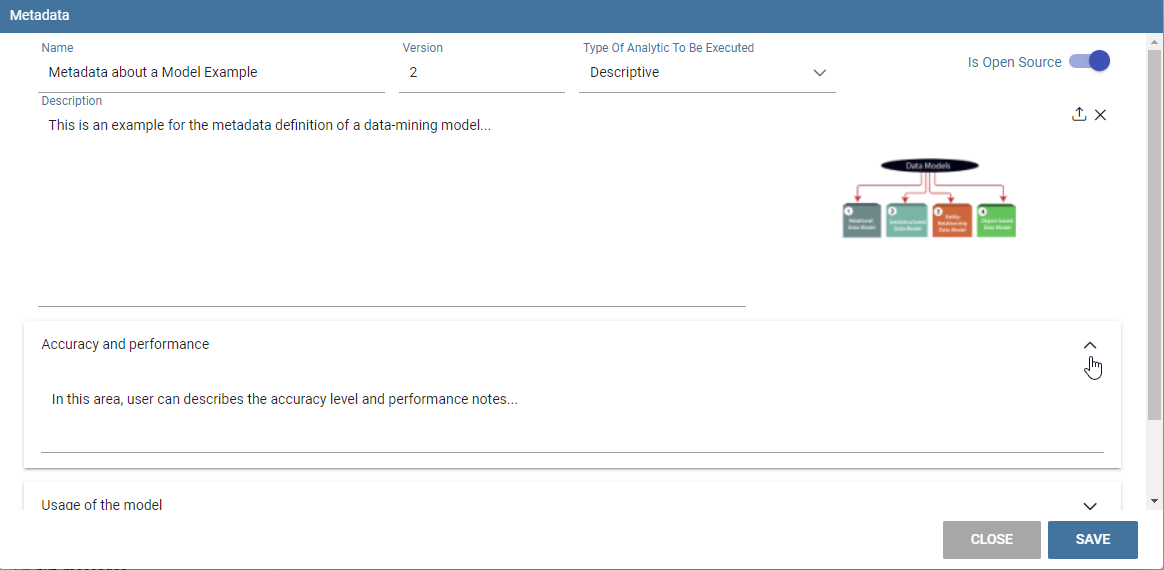
Metadata example